

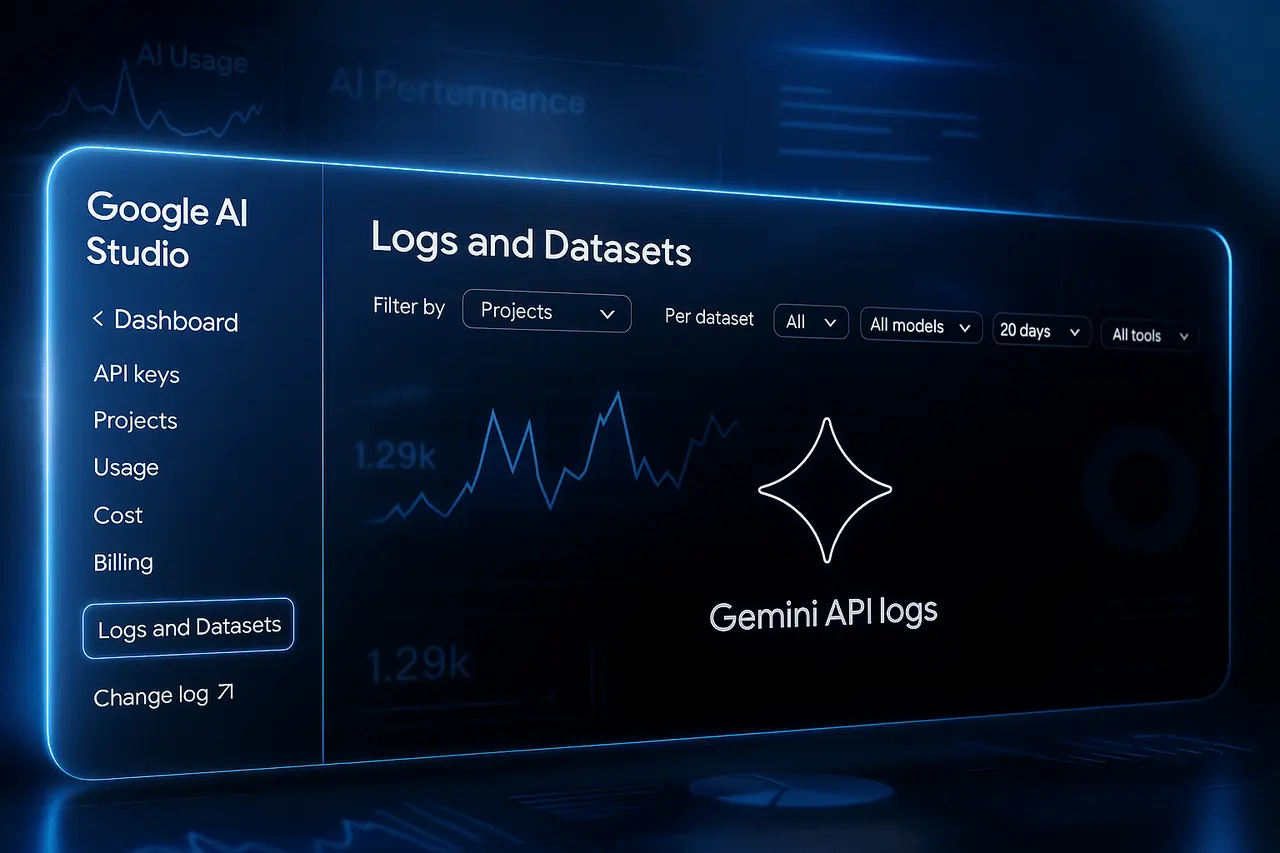
Google AI Studio’s Logs and Datasets feature gives Gemini API developers a way to see what their applications are actually doing after a prompt leaves the code and reaches a model. Instead of debugging from isolated test prompts, developers can inspect real API interactions, review inputs and outputs, filter problematic requests, and turn selected logs into reusable datasets for testing and evaluation.
Google introduced Logs and Datasets in October 2025 as an observability and evaluation workflow for AI applications. The feature has since become more useful as Google has expanded the supported Gemini API workflows and clarified how logs, retention, datasets, and data sharing work.
For developers building Gemini-powered applications, the significance is straightforward: the debugging process can move from “What went wrong?” to “Show me exactly which interaction went wrong, preserve it, and test the fix against it.”
Quick Summary
- Google AI Studio Logs and Datasets helps developers debug Gemini API applications using real API interactions.
- Logs let developers inspect prompts, responses, context, and other request details to identify problems.
- Datasets let developers save important interactions as reusable test and evaluation cases.
- Developers can export datasets as CSV, JSONL, or Google Sheets.
- Saved examples can support prompt testing, regression testing, and model comparisons.
- Logs have a 55-day default retention period, while datasets can be preserved for longer-term use.
- The feature helps turn real-world AI failures into repeatable test cases for improving applications.
- Current limitations include unsupported logging for Imagen, Veo, embeddings, robotics models, and certain media inputs.
What Are Google AI Studio Logs and Datasets?
Google AI Studio Logs and Datasets is a set of tools for inspecting supported Gemini API interactions and converting selected API logs into reusable datasets for testing, debugging, and evaluation.
Logs provide visibility into individual model interactions, including the prompt, response, and relevant request information. Datasets are curated collections of selected logs that can be exported and reused for tasks such as prompt refinement, regression testing, and model comparisons.
The basic workflow looks like this:
- Enable logging for a supported project.
- Let the application generate real Gemini API interactions.
- Inspect the resulting logs in Google AI Studio.
- Filter or select useful examples.
- Create a dataset from those logs.
- Export the dataset as CSV or JSONL, or send it to Google Sheets.
- Reuse the dataset for evaluation, testing, or model experimentation.
That makes the feature more than a traditional application log viewer. It connects observability, debugging, and evaluation in one workflow.
Why Do AI Developers Need Logs?
Traditional software debugging often starts with deterministic evidence: an error message, stack trace, failed request, or database record.
Generative AI applications are different.
An application can successfully return a response while still producing an undesirable result. A model might misunderstand an instruction, hallucinate a detail, use a tool incorrectly, follow an ambiguous system instruction, or produce an answer that technically satisfies the request but fails the application’s intended behavior.
That makes the model interaction itself valuable debugging evidence.
Google’s Logs and Datasets feature allows developers to inspect the actual interaction rather than attempting to reproduce the problem from memory. Developers can open a log entry and inspect the full prompt and response, along with previous-turn context where applicable.
For example, imagine a customer-support application that normally answers questions correctly but occasionally gives an incorrect refund policy.
Without logging, a developer might need to reproduce the customer’s conversation manually.
With logging enabled, the developer can:
- Find the problematic interaction.
- Inspect the exact input.
- Review the model’s response.
- Examine previous conversation context.
- Identify patterns across similar failures.
- Save representative examples to a dataset.
- Test a revised prompt or model against those examples.
The difference is significant: the production failure becomes a test case instead of disappearing into the application’s history.
How Does Google AI Studio Logging Work?
Logging is configured at the project level in Google AI Studio, with additional request-level behavior depending on the API being used.
Google currently distinguishes between the Generate Content API and the Interactions API.
For Generate Content requests, storage is not enabled by default. Developers can explicitly set the store behavior on individual requests or configure storage through AI Studio.
The Interactions API, meanwhile, stores interaction objects by default to support server-side state management unless that behavior is changed.
Once logging is configured, developers can open the Logs page in AI Studio, select a project, and inspect available interactions.
Google says supported calls include:
GenerateContentBatchGenerateContentStreamGenerateContent- Interactions API calls, except Managed Agents
- Calls made through OpenAI-compatible endpoints
There are also important exclusions, discussed below.
What Can You See in a Google AI Studio Log?
A log is useful because it preserves more than simply an error code.
Depending on the request, developers can inspect information associated with the model interaction, including the request payload, model response, parameters, metadata, and conversational context.
For Interactions API requests, Google also provides a link to the previous interaction ID when applicable.
This creates a practical debugging trail:
User request → application/API request → model response → observed problem
That trail can help developers determine whether the problem came from:
- The user’s input
- The system instruction
- Prompt construction
- Conversation history
- Model behavior
- Tool usage
- Application logic
- An unexpected API response
This is particularly valuable for applications where failures are intermittent rather than reproducible with a simple static test.
What Are Google AI Studio Datasets Used For?
The dataset component is where the workflow becomes more interesting.
Developers can select logs and create a dataset containing a curated collection of interactions. Google says these datasets can be used to create challenge sets, sample sets, and evaluation sets.
Challenge sets
A challenge set can contain examples representing difficult cases where the application needs improvement.
For example:
- Ambiguous user questions
- Long instructions
- Edge cases
- Tool-calling failures
- Difficult reasoning tasks
- Requests that previously produced poor responses
Instead of testing against random prompts, developers can maintain a focused collection of known difficult cases.
Sample sets
A sample dataset can represent real-world usage.
A developer might select a representative sample of production interactions and use it to test a new model or application version.
This helps answer a practical question:
Does the new version behave better on the requests our users actually make?
Evaluation sets
Evaluation datasets can be built around important capabilities or failure patterns.
For example, an application might maintain separate datasets for:
- Accuracy
- Instruction following
- Customer-support responses
- Structured output
- Tool use
- Classification
- Safety-sensitive edge cases
The value comes from repeatability. Instead of evaluating every new prompt or model change manually, developers can reuse the same collection of representative interactions.
How Do Logs and Datasets Improve AI Debugging?
The biggest advantage is that they connect real-world behavior with repeatable testing.
Consider an AI writing application that uses Gemini to generate product descriptions.
Suppose users report that some descriptions contain inaccurate product specifications.
A developer could collect those problematic interactions into a dataset.
The team can then change:
- The system instruction
- The prompt template
- The model
- Temperature or other parameters
- Application-side validation
- Tool configuration
The same dataset can then be used to compare the revised implementation.
This creates a basic regression-testing loop:
Production interaction → identify failure → preserve example → change application → rerun evaluation → compare results
That is a much more reliable development process than judging improvements from a handful of manually selected prompts.
Can Google AI Studio Datasets Be Exported?
Yes.
Google currently supports exporting curated datasets as:
- CSV
- JSONL
- Google Sheets
This makes the feature useful beyond the AI Studio interface. Developers can move selected interaction data into other analysis or evaluation workflows.
JSONL is particularly relevant for developers because it is widely used for machine-learning and API workflows.
A team could therefore use AI Studio as the starting point for collecting real examples and then move those examples into a broader testing pipeline.
Can Logs Be Re-run for Model Evaluation?
Google specifically points developers toward using datasets with the Gemini Batch API for response sampling and evaluation of models or application logic.
The Batch API is designed for large volumes of asynchronous requests and is intended for workloads where an immediate response is not required. Google currently describes it as operating at 50% of the standard cost, with a target turnaround time of 24 hours, although actual completion can be faster.
That creates another useful workflow:
Curate logs → create dataset → run batch requests → compare responses → identify regressions or improvements
For developers testing multiple model versions, prompts, or application changes, this can be substantially more useful than manually testing one prompt at a time.
Google AI Studio Logs vs Datasets
Logs and datasets serve different purposes.
| Capability | Logs | Datasets |
|---|---|---|
| Primary purpose | Observe real interactions | Reuse selected interactions |
| Debugging | Excellent for investigating individual requests | Useful for recurring failures |
| Real user examples | Yes | Yes, when selected |
| Filtering | Yes | Curated from filtered/selected logs |
| Export | Through dataset workflow | CSV, JSONL, Google Sheets |
| Regression testing | Limited by themselves | Stronger use case |
| Model comparison | Possible through downstream workflows | Better suited |
| Long-term test set | No | Yes |
| Evaluation workflow | Starting point | Reusable test material |
The simplest way to think about it is:
Logs tell you what happened. Datasets help you test what should happen next.
How Long Are Google AI Studio Logs Stored?
Log retention is limited.
Google’s current documentation says logs expire and are marked for deletion after a default 55-day retention period, with configurable retention periods of 7, 14, 28, or 55 days. Logs saved to a dataset do not expire in the same way.
That makes dataset curation important for developers who want to preserve representative examples for longer-term testing.
A production team should not assume that an important debugging example will remain available indefinitely simply because logging is enabled.
If an interaction is valuable as a future regression test, preserving it in an appropriate dataset is the safer workflow.
Is Google AI Studio Logging Free?
There are two separate questions here: the cost of logging and eligibility for log storage.
When Google launched the feature, it said logging could be enabled without an additional monetary cost.
However, Google’s current Gemini API documentation states that Gemini API log storage is available only for projects on the paid tier.
That distinction matters.
Google AI Studio itself can be used with the Gemini API’s free tier, but developers should not assume that all logging and storage functionality is available under the same conditions.
For current eligibility and model/API pricing, developers should check Google’s live Gemini API pricing documentation because model availability and rates can change.
What Are the Limitations of Google AI Studio Logs?
Logs and datasets are useful, but they are not universal observability infrastructure.
Google currently lists several unsupported scenarios.
Logging is not supported for:
- Imagen models
- Veo models
- Gemini embedding models
- Gemini Robotics models
- Inputs containing videos
- Inputs containing GIFs
- Inputs containing PDFs
- Public Preview Agents in the Gemini API
The supported API surface can also change as Google updates the platform, so developers should consult the documentation before designing a production monitoring architecture around a particular endpoint.
Another practical limitation is that a project needs at least one active API key for logs to be displayed. Google notes that deleting all API keys can cause the project’s log visibility to disappear until another active key exists.
What About Privacy and Sharing Data With Google?
This is one of the most important aspects for production developers.
Logging creates records containing application interactions, so teams should understand what information is being stored before enabling it for real users.
Google describes Gemini API logs as developer-owned API data associated with supported calls. Developers can use datasets internally, and Google also provides an option to share selected datasets as feedback.
Sharing is optional, but developers should treat it carefully.
Google’s feedback guidance explicitly warns users not to submit feedback involving sensitive, confidential, or personal information.
The practical rule is simple:
Do not put sensitive customer information into a dataset merely because the interaction is useful for debugging.
Before creating production datasets, teams should consider:
- Personally identifiable information
- Confidential business information
- Customer conversations
- Authentication credentials
- API keys
- Proprietary prompts
- Regulated information
- Internal documents
Data minimization and appropriate access controls remain important even when the platform provides logging tools.
Google AI Studio Logs vs Traditional Application Monitoring
Logs in AI Studio should not be viewed as a complete replacement for conventional application observability.
Traditional monitoring systems are still valuable for measuring things such as:
- HTTP errors
- Server latency
- Infrastructure health
- Authentication failures
- Database errors
- Application exceptions
- Resource consumption
AI Studio Logs adds a different layer: model-level observability.
For a generative AI application, the ideal monitoring stack may therefore look more like:
Infrastructure monitoring + application logs + Gemini interaction logs + evaluation datasets
Each layer answers a different question.
Infrastructure monitoring asks whether the system is functioning.
Application monitoring asks whether the software is functioning.
AI logs ask what happened during the model interaction.
Evaluation datasets ask whether a new version still behaves correctly on known examples.
A Practical Workflow for Developers
A useful workflow for a Gemini application can be built around five stages.
1. Enable logging
Start with a billing-enabled project and configure the relevant logging behavior in AI Studio.
2. Collect representative interactions
Do not immediately create a huge dataset. First identify the interactions that provide meaningful evidence about application behavior.
3. Investigate failures
Filter logs and inspect problematic requests, responses, context, and other available metadata.
4. Create focused datasets
Separate datasets can be created for different purposes, such as difficult cases, production samples, or regression tests.
5. Re-evaluate after changes
When changing a prompt, model, or application workflow, use the preserved examples to determine whether the change actually improves results.
This is the step that turns logging from a passive monitoring feature into an active engineering tool.
Why Logs and Datasets Could Become More Important?
Google originally described Logs and Datasets as groundwork for broader evaluation capabilities.
That direction makes sense because AI application development is increasingly moving away from one-off prompt experimentation.
As applications become more complex, developers need to answer questions such as:
- Did the latest prompt change improve accuracy?
- Did switching models introduce regressions?
- Are tool calls behaving consistently?
- Does the application work with real user inputs?
- Which edge cases repeatedly fail?
- Is a cheaper model good enough for this workflow?
A curated collection of real interactions provides the raw material for answering those questions.
The larger shift is from prompt testing to application evaluation.
That is arguably the more important development behind Google AI Studio’s Logs and Datasets feature.
Google AI Studio Logs and Datasets: What Developers Should Know
| Area | Current status |
|---|---|
| Log viewing | Available in Google AI Studio |
| Supported APIs | GenerateContent, BatchGenerateContent, StreamGenerateContent and supported Interactions API calls |
| API compatibility | OpenAI-compatible endpoints are included for supported calls |
| Dataset creation | Available from selected logs |
| Dataset export | CSV, JSONL and Google Sheets |
| Default maximum log retention | 55 days |
| Dataset expiration | Saved datasets do not expire like ordinary logs |
| Paid-tier requirement | Current documentation says Gemini API log storage requires the paid tier |
| Imagen/Veo logging | Not supported |
| Video/GIF/PDF input logging | Not supported |
| Batch evaluation workflow | Supported as a downstream use case |
Final Thoughts
Google AI Studio Logs and Datasets addresses one of the biggest problems in generative AI development: understanding what happens after an application starts receiving real-world requests.
Logs provide the evidence. Datasets preserve the important examples. Batch processing and evaluation workflows can then turn those examples into repeatable tests.
For developers building Gemini applications, the real value is not simply having another dashboard. It is the ability to turn unpredictable production interactions into structured engineering feedback.
A failed model response can become a test case. A collection of test cases can become an evaluation set. And an evaluation set can help determine whether a new prompt, model, or application change actually improves the product.
That makes Logs and Datasets an important step toward treating generative AI applications less like collections of prompts and more like software systems that can be observed, tested, measured, and continuously improved.
Frequently Asked Questions
1. What are Google AI Studio Logs and Datasets?
Google AI Studio Logs and Datasets lets Gemini API developers inspect supported API interactions and save selected logs into datasets. Logs help investigate application behavior, while datasets can be exported and reused for testing, evaluation, and model or prompt comparisons.
2. Does Google AI Studio automatically log every Gemini API request?
Not necessarily. Logging and storage behavior depends on the API and project configuration. Generate Content requests are not stored by default, while Interactions API objects use storage by default unless changed. Developers can configure logging through AI Studio or request-level settings where supported.
3. How long does Google AI Studio keep logs?
The current default retention period is 55 days. Google allows project retention settings of 7, 14, 28, or 55 days. Logs saved to datasets do not expire under the ordinary log-retention process.
4. Can I export Google AI Studio datasets?
Yes. Google currently supports exporting datasets as CSV and JSONL files and sending them to Google Sheets.
5. Can Google AI Studio datasets be used for model evaluation?
Yes. Google specifically describes datasets as useful for evaluation sets and recommends using datasets with the Gemini Batch API for response sampling and evaluation of models or application logic.
6. Is Google AI Studio logging available for Imagen and Veo?
No. Google’s current documentation lists Imagen and Veo among the models for which logging is not currently supported. Logging also has other input and API limitations.
Also Read –
Google AI Pro Student Trial: How Can You Get 1 Year Free