

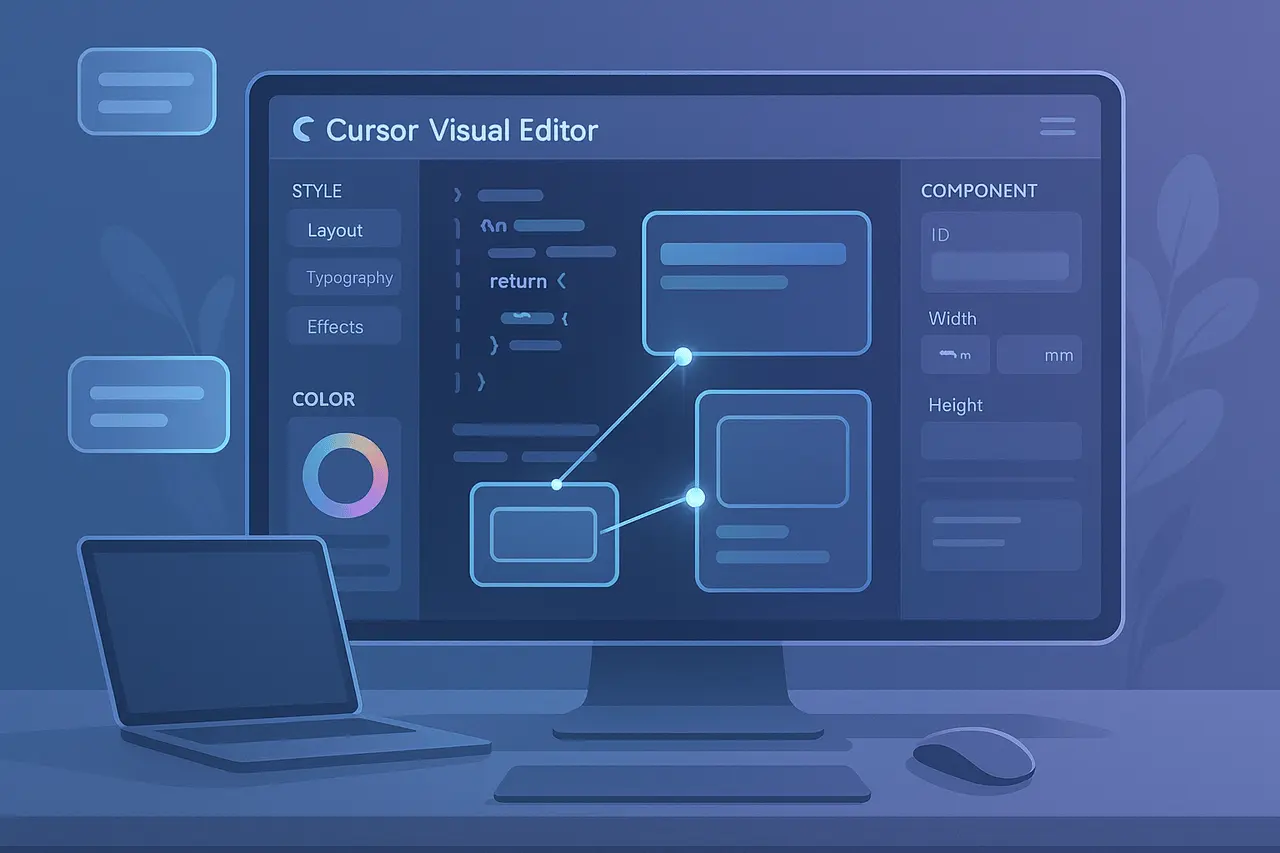
In December 2025, Cursor, an AI-driven integrated development platform (IDE), unveiled significant improvements to its built-in browser tooling, introducing the Visual Editor, which enables drag-and-drop editing of styles and design directly in your development environment. This new feature represents a significant change in how designers, developers, and product teams interact with their web-based applications and breaks down the barriers between code and visual design implementation.
In the following article, we look at Cursor Visual Editor, how this feature works, why it’s essential to modern workflows, and what it could mean for the future of web application development.
What is the Cursor Visual Editor?
Visual Editor is a new feature in the Cursor Browser, an embedded browser in the Cursor IDE that AI agents can use to view the web, interact with, and test web-based applications. Unlike typical browser developer tools that focus only on HTML and CSS, the Cursor’s Visual Editor lets users visually modify elements on a webpage and have those changes reflected in the codebase.
This feature is part of Cursor’s larger 2.2 release, which tightly ties visual editing to real-time code updates, allowing you to create interfaces that are contextual rather than switching between external editors and tools.
Cursor Visual Editor: Key Capabilities That Redefine UI Editing
1. Drag-and-Drop DOM Manipulation
The basis of The Visual Editor is the ability to drag and drop components across the DOM (Document Object Model) structure. Instead of manually editing layout markups, users can move visually sections, buttons, or components across the screen. The Visual Editor will then map these changes back to the code.
This technique helps reduce time spent and the need for context switching, enabling designers and developers to assess the effects of layout changes in real time.
2. Live Property Controls
The Visual Editor features a sidebar with buttons for altering styles and properties of components. Users can pick elements and modify:
- Colors using live color pickers
- Typography (fonts, sizes)
- Spacing (margins, padding)
- Grid and Flex layouts
Since these controls are live and interactive, you can play with various looks and see the changes reflected immediately in the render view.
3. Component State Testing
In modern Web applications, specifically those built with frameworks such as React, components typically have different states (e.g., inactive, disabled, or loading). The Visual Editor lets you see the component’s properties in the sidebar, allowing developers and designers to toggle states without writing code. This simplified testing reduces friction and speeds up the iteration process.
4. Point-and-Prompt Interaction Model
The most original aspect is the feature Cursor is calling “point and prompt.” Click any UI element, then describe the changes you’d like to make naturally, like “make this header larger” or “swap these cards.” Cursor’s AI agents will interpret the prompts and automatically apply the changes to the code.
It integrates visual manipulation and AI-assisted programming, enabling even non-programmers to express their design intentions naturally.
How does it improve the Web Design and Development Workflow?
Bridges Design and Code
In the past, designing user interfaces required separate tools such as Figma and Adobe XD, with developers manually implementing the designs in code afterward. The Visual Editor in Cursor Visual Editor closes this gap, allowing modifications to be created visually and applied directly to a project’s codebase.
This reduces the risk of handoff mistakes, improves collaboration between developers and designers, and shortens the time required to move from idea to delivered product.
Reduces Context Switching
Developers frequently use several tools, including a design application and a browser for testing and editing code. Visual Editor unifies all these within the Cursor IDE, reducing the need to switch between applications while maintaining uniformity.
Accelerates Prototyping
Since you can manipulate visual designs and styles and observe live results, prototyping can be significantly faster and more user-friendly. Initial customer reviews suggest this workflow substantially reduces the time required to complete iterations compared to traditional workflows.
AI-Assisted Precision
Combining human input with AI interpretation, Cursor’s Visual Editor lets you make changes based on intent rather than manual editing. This allows developers to focus on innovative and strategic decisions and leave repetitive or erroneous code changes to the AI.
Who Benefits Most From the Visual Editor?
Visual Editor can be invaluable to:
- Front-end designers with HTML0 front-end developers who seek an easier way to alter style and layout without the need for repetitive changes to the code.
- Designers who require strict controls over UI elements and want these changes reflected in deployable code, not just mockups.
- Teams of product developers that depend on quick feedback loops and collaborative iteration.
- Non-technical users with whom you can describe visual changes using natural language, and let Cursor translate them to code.
This allows for the democratization of certain aspects of interface design, making it accessible to a broader range of people.
Cursor Visual Editor: Limitations and Considerations
Although it is, Visual Editor is not a complete replacement for dedicated design software or other tools with collaboration capabilities, such as versioned design libraries. Since it’s a new feature, its user interface and workflows are constantly evolving, and users have noticed the first usability issues in discussions with other users.
In addition, since it alters styles and code, teams should incorporate standard testing and source control practices to ensure that visual changes align with the project’s overall structure and design guidelines.
What does this mean for the Future of Coding Tools?
The Cursor’s Visual Editor signals a broader trend in the development tools market: combining visually inspired design AI support with conventional engineering techniques in an integrated environment. By using visual UI manipulations that translate directly into production code, it is a perfect example of the next phase of improvements to the developer experience, powered by artificial intelligence and integrated tools.
In a crowded market that uses both standalone design tools and collaboration platforms, Cursor’s approach to integrating design features into the Editor could change the way teams approach interface development and collaboration.
Final Thoughts
Cursor’s Visual Editor is an essential milestone in the evolution of AI-enhanced development tools. By combining a visual interface, live code editing, and natural-language prompting, it decreases friction throughout the entire UI design process. Designers have greater control over their environment, developers save time on tedious layout adjustments, and product development teams achieve faster processes and better communication.
Although it can’t fully replace traditional design tools, its ability to bridge the gap between design intent and executable code signals a shift toward more intelligent, integrated workflows. As AI plays a bigger role in software development tools, such as those in the Cursor Visual Editor, we see a future in which creating polished, professional-looking interfaces will be more efficient and collaborative than ever.
Frequently Asked Questions
1. How do I use the Visual Editor? Cursor Browser?
The Visual Editor allows you to visually manipulate the interface of a web-based application and its elements by moving them, altering styles, and evaluating component states, with those changes applied directly to your project’s code.
2. Do I require React to be able to use it? What is the Visual Editor?
No. Although Visual Editor displays component properties for Visual Editor surfaces (which is beneficial when using React), Drag-and-drop and natural-language prompt features are available to anyone without extensive knowledge of the framework.
3. Does Visual Editor replace tools like Figma or Adobe XD?
It will reduce dependence on specialized design software by allowing in-context visual editing; however, it’s not yet able to duplicate all the collaborative and library capabilities of specialized design platforms.
4. What is the way that the AI component functions in visual editing?
The Cursor AI interprets natural-language or visual commands, then modifies the relevant code to reflect those intentions.
5. Are you able to use this feature now?
Yes. The Visual Editor is available as part of Cursor’s December 2025 update. The Visual Editor is available to users with the latest version of the platform.