
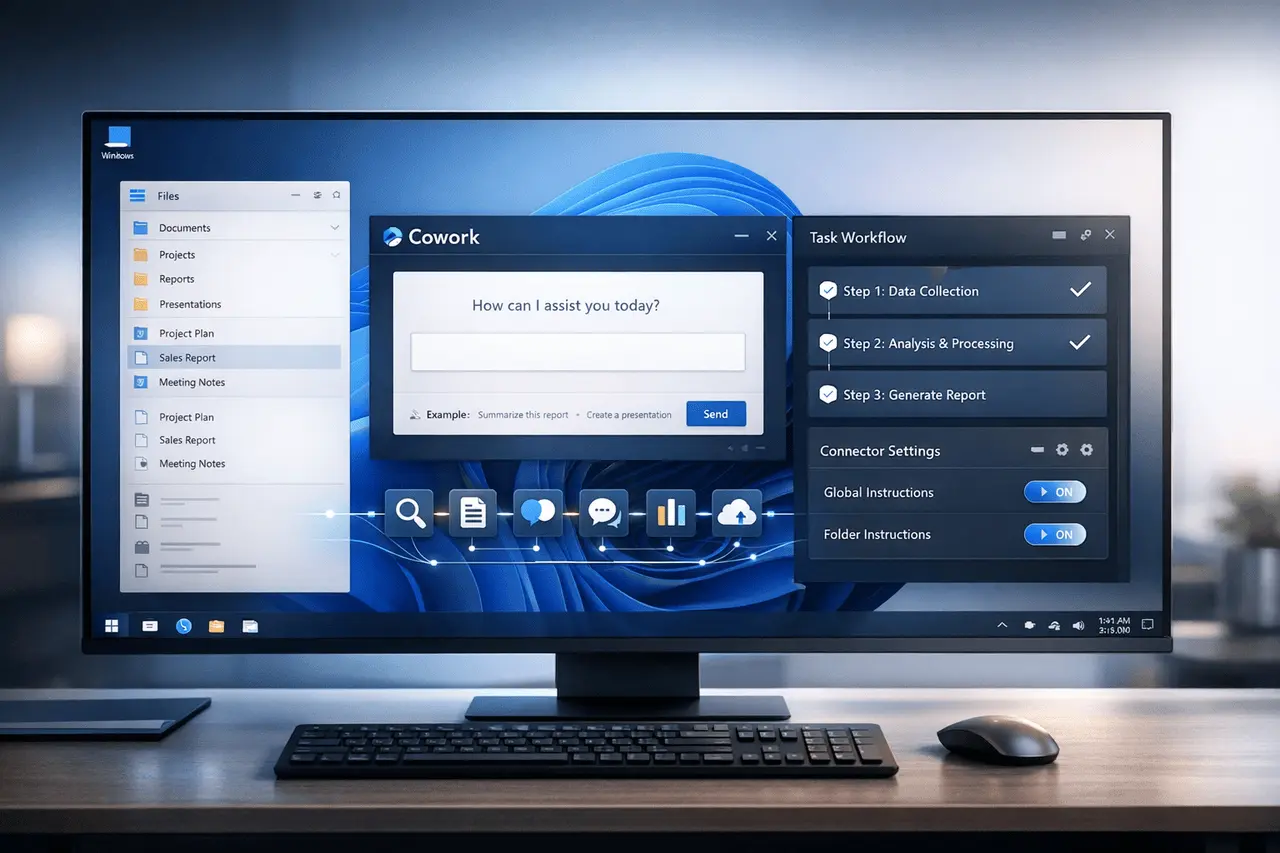
Cowork for Windows has been released as a research preview, offering full compatibility with macOS. Users can access their files, complete multi-step tasks using plugins, and connect via MCP connectors. Additionally, instructions at the folder and global levels can be saved across sessions.
The rollout is bringing Cowork on Windows in line with its macOS counterpart, opening access to paid-plan users and marking a significant milestone towards cross-platform AI productivity tools.
What is Cowork to Windows?
Cowork on Windows is cowork.exe, the Windows version of the Cowork desktop environment designed specifically for Claude users. It allows local access to files and task automation, as well as plugin support, and advanced connector integrations from Windows. Windows operating system.
The preview of research provides:
- Full feature compatible with macOS
- File system access
- Multi-step task execution
- Plugin support
- MCP connectors
- Global persistent and instructions for folders
This release will ensure Windows users have access to the same features previously available in macOS.
Full Features Parity with macOS
The Windows version is now identical to the macOS experience in terms of functionality. This aligns features based on platform gaps and allows for uniform workflows across devices.
Feature Comparison Table
| Feature | macOS Version | Windows Version (Research Preview) |
|---|---|---|
| Local File Access | Yes | Yes |
| Multi-Step Task Execution | Yes | Yes |
| Plugin Support | Yes | Yes |
| MCP Connectors | Yes | Yes |
| Global Instructions | Yes | Yes |
| Folder-Level Instructions | Yes | Yes |
| Research Preview Status | No | Yes |
| Paid Plan Required | Yes | Yes |
The Windows version is currently categorized as a research preview, which means it could receive periodic updates if feedback is received.
File access and local workflow integration
One of the biggest features offered by Cowork on Windows is direct access to files.
This lets Claude to
- Learn and analyze local documents
- Modify or generate files
- Execute context-aware tasks using project data
- Assist in multi-document workflows
For content developers, developer teams, and knowledge workers. Local file access increases efficiency by enabling AI-powered actions within existing project directories.
Multi-Step Task Execution
Multiple-step execution of tasks enables Claude to perform sequenced, logic-based tasks rather than respond to individual commands.
This capability is compatible with:
- Code refactoring across multiple files
- Structured data transformation
- Report generation using many sources
- Automated document workflows
Instead of executing a single operation, Cowork on Windows lets AI-driven workflows span multiple steps in a single session.
Plug-in Support, Extensibility, and Extension
Plugin support enables Cowork to integrate with other applications and tools.
Benefits include:
- Additional automation capability
- Integration with tools for productivity
- Custom workflow enhancement
- Scalable AI augmentation
Plug-ins change Cowork in Windows from a basic desktop interface to an extensible AI Workspace.
MCP Connectors: Expanding Integration Possibilities
MCP connectors facilitate communication with Cowork and other supported systems.
While the details of implementation may be altered during the research preview process, the inclusion of MCP connectors enables:
- Secure system integrations
- Enterprise data connectivity
- Cross-tool interoperability
- Interactions with API structure
For businesses that use AI-powered workflows, connectors can help connect internal systems using Claude-powered processes.
Global and folder instructions Persistent Context
One of the major improvements with this release is the capability to specify global and folder-level instructions.
What are General Instructions?
Global instructions are applied to all sessions. These settings remain in place and determine how Claude responds, ensuring consistency in the task’s style, format, and behavior.
What are Folder Guidelines?
Instructions for folders apply only to a specific folder and its project folder.
This allows:
- Project-specific coding standards
- Documentation formatting rules
- Workflow-specific constraints
- Context-aware AI assistance
By incorporating these guidelines into every session, cowork on Windows increases consistency and reduces the need for repetitive configuration.
Use Cases from Industry
The table below outlines how Cowork on Windows can be used in corporate environments.
Use Cases of Industry Table
| Industry | Primary Use Case | Benefit |
|---|---|---|
| Software Development | Code review and refactoring | Faster iteration cycles |
| Content Marketing | Multi-document content generation | Workflow efficiency |
| Legal & Compliance | Document analysis and summarization | Improved review speed |
| Research & Academia | Structured data synthesis | Enhanced research productivity |
| Operations | Process documentation automation | Reduced manual effort |
These cases show the power of cowork for Windows, demonstrating its potential as a boost rather than a Chat interface.
Research Preview Status: What does it mean?
Collaboration for Windows has been put in the research preview phase.
Research previews typically indicate:
- Early-stage public access
- Completeness of the feature with possible enhancements
- Active feedback collection
- Iterative updates
While feature parity is in place, users should anticipate ongoing enhancements as the platform evolves.
Access is accessible to all Claude plan subscribers.
Benefits of Collaboration on Windows
1. Cross-Platform Consistency
Windows users can now enjoy the same features as macOS users. macOS customers.
2. Persistent Context
General and Folder instructions stop the need for repetitive configuration.
3. Advanced Workflow Automation
Multi-step execution enables complex task management.
4. Integration-Ready
Plugin integration with MCP and support for connectors enable scalable expansion.
Specifications, Limitations, and Questions
When feature parity has been reached, the designation “research preview” indicates that the technology is being refined.
Practical issues comprise:
- Minor interface changes could be made in the future
- Features are updated in response to user feedback
- Requires an active plan
Organisations that use Cowork on Windows must track changes as the research preview progresses.
Why co-working on Windows is Important?
The launch of Cowork on Windows represents a broader shift in AI tooling toward deeper integration with operating systems.
Instead of chatbots that are isolated interactions, today’s AI platforms include:
- Context-aware
- File-system integrated
- Workflow persistent
- Connector-enabled
This transformation enables enterprise-grade use and scalable productivity enhancement.
By allowing persistent instructions and integration at the system level, Cowork on Windows positions itself as an organized AI workspace, rather than an individual tool for conversation.
My Final Thoughts: Evolution of AI Workspaces for Windows
Cowork on Windows offers full feature parity with macOS and introduces persistent global and folder commands that carry over across sessions. With local file access, multi-step task execution plugin support, and MCP connectors, it’s a significant upgrade for organized AI productivity tools.
In the context of an open research preview for those who pay for it, the system is a step towards deeper operational system interoperability and contextually aware AI workflows.
The Cowork application on Windows is more than a chat-based desktop interface; it’s an ever-changing AI workspace designed to work directly in professional environments, enabling enduring, integrated, and scalable performance across Windows. Windows environment.
FAQs
1. What exactly is Cowork Windows?
Cowork on Windows is the Windows Cowork desktop application. A cowork that provides access to files and multi-step task execution. MCP connectors, plugins, and a set of persistent instructions.
2. Is Cowork on Windows fully featured compared to macOS?
Yes. It has full feature parity with the macOS version, including plugins, file access connectors, and instruction persistence.
3. Who can access Cowork for Windows?
It is accessible to all paying Claude plan subscribers during the review stage of the preview phase.
4. What is the meaning of research preview?
Research previews suggest that it is available in the early stages of public release, with all features; however, it will require continuous improvement and updates based on user feedback.
5. In what way do folder and global directions work?
Global instructions apply to all sessions. However, instructions for folders are only applicable to specific directories. Both are applicable across sessions.
6. Does Cowork on Windows access local files?
Yes. It enables local file access and allows AI-assisted workflows to run directly in Windows project folders.
Also Read –
Claude Code Commands Explained: How They Work and Why They Matter?