

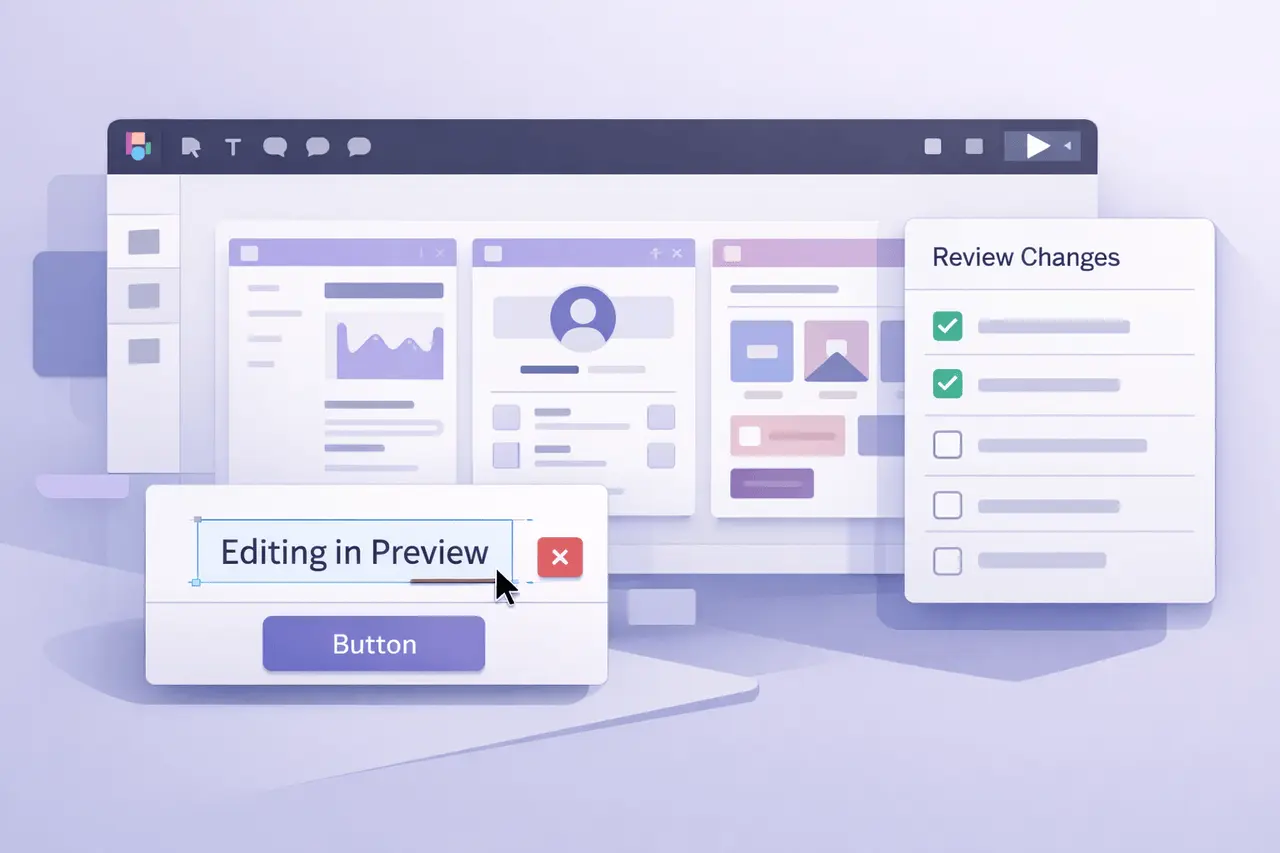
The most recent Figma Make updates focus on making it easier to review designs without friction. With the introduction of a built-in task review checklist for changes, direct navigation to specific pages, and the ability to edit or remove elements in preview, Figma is tightening the feedback loop between design, iteration, and validation.
These enhancements are intended to help teams move quickly and require clarity when looking at AI-aided or automated outputs. Instead of switching between panels and entering edit mode repeatedly, designers can now review as they navigate, make edits, and create new content with minimal effort in the areas where context is most important.
What is Figma Make?
Figma Make is a workflow layer that lets teams create, refine, validate, and test designs faster by combining structured outputs with rapid iteration. It is often employed to:
- Transform inputs that are structured to editable style objects
- Review changes before finalising designs
- Accelerate prototyping in the early stages and refinement
The most recent updates enhance that “review as well as refine” stage, where speed and precision are the most critical factors.
Why These Updates Matter?
Design review is typically where progress slows. Minor edits, inconsistent change tracking, and gaps in page navigation could cause unnecessary stress. The brand-new Figma Make capabilities aim to address three common issues:
- Unreview status if more changes are made
- Time is lost in navigating huge documents that contain numerous sections or pages
- In the background of changing styles to allow for simple edits to text or elements
By eliminating these problems directly within the preview interface, Figma Make becomes more practical for real-world collaborative design workflows.
Key Figma Make Updates Explained
Review Changes With a To-Do List
The most significant improvement is the capability to review changes with an organised list of tasks. Instead of looking at the canvas or using memory, reviewers now systematically review changes.
What does it do:
- Offers a simple checklist of items that are pending
- Reduces missed edits during review
- Increases accountability when multiple stakeholder groups are involved
This strategy aligns well with iterative design methods, where clarity and order are crucial during fast cycles.
Navigate to Specific Pages
Large design files usually include dozens of pages, particularly in product-sized projects. The new navigation feature on pages lets users quickly jump to relevant sections while reviewing.
Practical benefits:
- Access to more targeted design zones
- Scrolling is not as long, and there is no manual search
- Smoother collaboration during live reviews
This is especially useful for teams that review outputs that are spread across multiple screens or flows.
Edit Text and Delete Elements Directly in Preview
Before, even minor adjustments needed to be made before exiting the preview mode. With this update, users can perform simple edits right where they can see the output.
Actions supported by HTML0 include:
- Editing text content
- Eliminating elements that are not needed
This helps reviewers stay in their context, and drastically reduces friction in final polish passes.
How the Updated Workflow Works?
Before the Update
- Manually review changes
- Navigate pages using the file structures
- Return to edit mode to make minor fixes
After the Update
- Track changes via a to-do list
- Skip directly to the relevant pages
- Make lightweight edits in preview
Feature Comparison Table
| Workflow Aspect | Before Updates | After Updates |
|---|---|---|
| Change tracking | Manual, informal | Structured to-do list |
| Page navigation | File-level browsing | Direct page access |
| Minor edits | Edit mode required | In-preview editing |
| Review efficiency | Slower, error-prone | Faster, more controlled |
Real-World Use Cases
Product Design Teams
- Review generated screens quickly
- Apply changes to copy the last-minute without changing the context
Design Systems Maintenance
- Directly navigate to the affected components
- Remove outdated elements during review
Cross-Functional Reviews
- Designers and product managers can discuss changes with each other.
- Clear to-do items reduce follow-up cycles.
Benefits of the New Figma Make Capabilities
- Speedier reviews that require fewer exchanges
- Increased accuracy by implementing systematic change monitoring
- Improved focus by ensuring that reviewers are in preview mode
- Scalability for large, multi-page design files
These benefits are significant for teams that are using AI-assisted design generation. The efficiency of reviewing outputs is just as crucial as creating them.
Figma Make updates: Limitations and Practical Considerations
While these changes enhance usability, teams must keep these considerations in mind:
- In-preview editing is best suited for lightweight changes, not profound layout restructuring
- Clear conventions for teams are required to determine which items are must-dos.
- Large teams might need guidelines to avoid editing in the same place during reviews.
When used with care, these features can increase speed, but without losing control.
Best Practices for Teams Using Figma Make
- Make use of the list of tasks as a single source for truth in reviews
- Combine navigation on the page along with simple page name conventions
- Preview edits to preview reserve to make repairs, copy, and removals, not structural overhauls
- Finalise significant changes in full edit mode before sign-off
My Final Thoughts
The most recent Figma Make updates focus on the things that matter most after the creation process: effective review and improvement. By incorporating a task list for tracking changes, direct page navigation, and the ability to edit in-preview elements and text, Figma Make reduces friction at a crucial stage of the creation process.
These enhancements reflect a broader shift towards faster, more relevant design workflows. As design files become more complex, iteration cycles shorten, and teams become more fragmented, tools that keep them focused and aligned will continue to determine how modern design work is completed.
FAQs About Figma Make Updates
1. What is the primary goal of the newest Figma Make updates?
The new versions are designed to accelerate the design review process by enhancing change-tracking, navigation, and editing speed and ease directly from the preview.
2. Do I have the ability to make all design changes using preview?
Preview editing is designed for basic actions, such as editing text or deleting elements. The more complex layout modifications still require editing mode.
3. What is the best way to increase collaboration?
It offers a concise outline of the changes, helping teams keep track of their progress and avoid omitting updates during review.
4. Does page navigation work well in small files?
It’s the best choice for large or multi-page documents. However, it can help with smaller projects with fewer sections.
5. Do these changes replace the traditional review process?
They can enhance workflows rather than replacing them, allowing reviews to be faster and more organised.
Also Read –
Figma Connect: Turn Figma Designs Into Code Seamlessly