

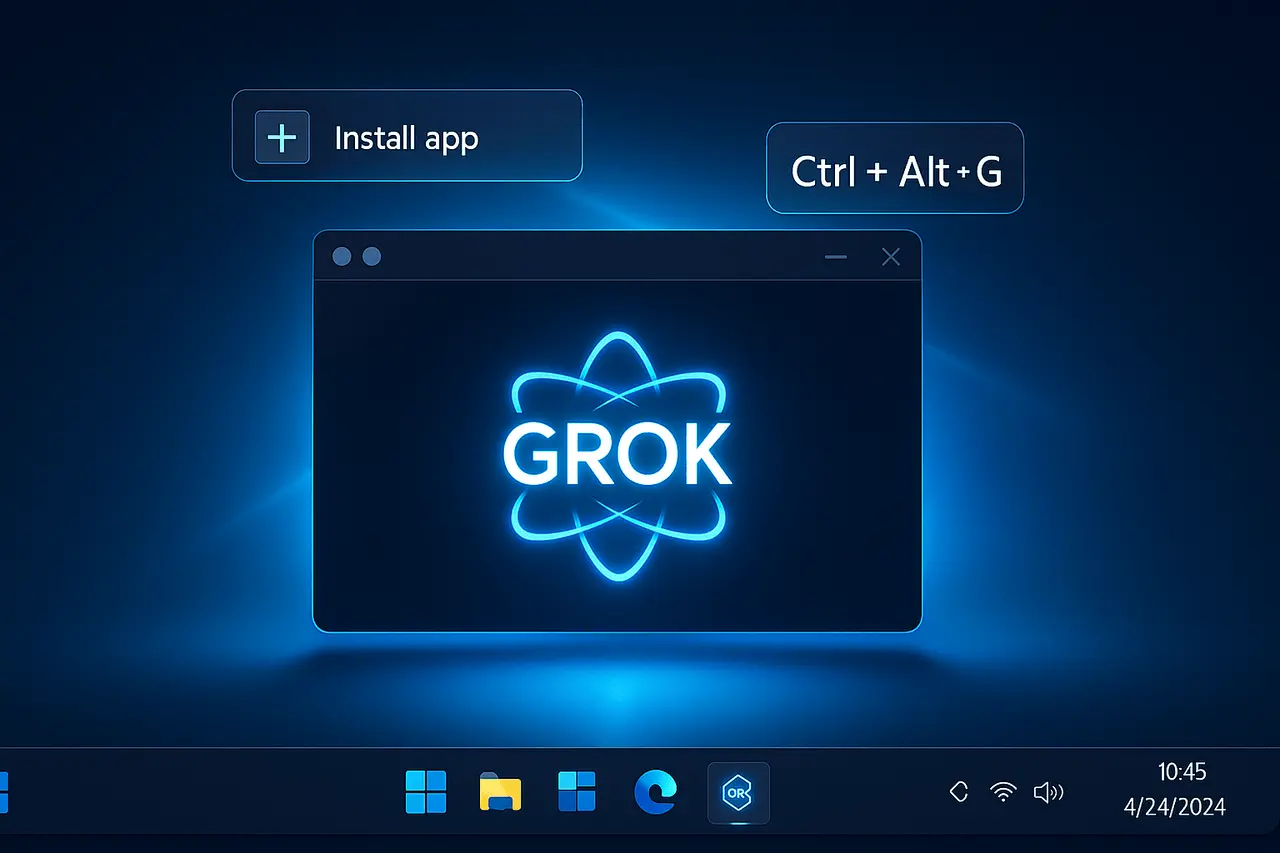
Grok on Windows is easy to access using Google Chrome or Microsoft Edge, allowing you to install it as a Progressive Web App (PWA) for quick desktop access.
If you use Grok regularly on your PC, you can make it easier to access by installing the website as an app-like shortcut on Windows. Instead of opening your browser and navigating to Grok every time, you can launch it from your desktop, Start menu, or taskbar.
This guide explains how to install and use Grok as a Progressive Web App (PWA) on Windows 10 and Windows 11 using Google Chrome or Microsoft Edge. It also covers the difference between the Grok desktop experience and a standalone Windows application, along with installation, troubleshooting, and removal steps.
Qucik Summary
- Learn how to install Grok as a PWA on Windows 10 and 11 using Chrome or Edge.
- Access Grok from your desktop, Start menu, or taskbar.
- Understand the difference between a Grok PWA, a desktop shortcut, and a native Windows app.
- Troubleshoot installation issues, manage updates, and uninstall the app when needed.
- Find answers to common questions about Grok downloads, compatibility, internet access, and usage.
Does Grok Have a Desktop App for Windows?
You can access Grok on your Windows PC through its official website at grok.com. You can also use your browser’s app installation feature to create a separate window for Grok, giving you an experience similar to a desktop application.
However, installing the Grok website as a PWA or app-like shortcut is different from downloading a standalone Windows program. The installation method described in this guide uses your browser to open the web-based Grok service.
If you’re searching for a Grok desktop app download or a Grok Windows app, use the official Grok website and check xAI’s official channels for any separately released desktop software. Avoid unofficial installers that claim to be the official Grok application.
What Is a Grok PWA?
A Progressive Web App (PWA) is a web-based application that can be accessed through a browser but may also be installed on a computer for a more app-like experience.
Depending on the website and browser, an installed web app can open in its own window, appear in the Start menu, and support desktop shortcuts or taskbar pinning. Not every website installation has all PWA capabilities.
For Grok users, installing the website as an app makes it easier to open the AI assistant without repeatedly navigating through browser tabs.
How to Install Grok as a PWA on Windows?
You can install Grok through Microsoft Edge or Google Chrome. You do not need a separate Grok installer for the method described below.
Method 1: Install Grok Using Microsoft Edge
Microsoft Edge allows you to install websites as apps and open them in separate windows.
Step 1: Open the official Grok website
Launch Microsoft Edge and visit https://grok.com/. Sign in to your account if required.
Step 2: Open the Edge menu
Click the three-dot menu in the upper-right corner of the browser.
Step 3: Find the installation option
Navigate to More tools → Apps → Install this site as an app. Menu labels can vary slightly between Edge versions.
Step 4: Name and install the app
If prompted, enter a name such as Grok and click Install. Edge will create an app-like installation that opens Grok in a separate window.
Step 5: Create a desktop shortcut
To make Grok easier to access, enter edge://apps in the address bar. Find Grok, open its details, and select the available options to create a desktop shortcut or pin the app to your taskbar or Start menu.
You can now launch Grok directly from Windows without first opening a regular browser tab.
For additional instructions, see Microsoft’s guide to installing and managing apps in Edge.
Method 2: Install Grok Using Google Chrome
If you prefer Chrome, you can use its web app installation feature when available.
Step 1: Open Grok in Chrome
Launch Google Chrome and visit grok.com.
Step 2: Open Chrome’s menu
Click the three-dot menu in the upper-right corner.
Step 3: Select the app installation option
Navigate to Cast, save, and share → Install page as app, if that option is available. Some websites also display an installation icon directly in the address bar.
Step 4: Complete the installation
Follow the on-screen instructions. Chrome will create an app-like entry for Grok if the installation option is supported.
Step 5: Launch Grok from Windows
Open the newly installed app from the available launcher or shortcut. If Chrome does not offer an installation option for Grok, you can create a regular website shortcut instead.
Google provides further instructions in its guide to using web apps in Chrome.
How to Use Grok as a Windows App?
Once you’ve installed Grok, you can use it much like the website.
- Launch Grok: Open it from your desktop shortcut, Start menu, or taskbar.
- Sign in if necessary: Use your account credentials when prompted.
- Ask questions: Enter prompts for research, explanations, writing, brainstorming, or other supported tasks.
- Use available features: Access the features and tools available to your account, which may vary by subscription and product updates.
- Keep Grok accessible: Leave the app pinned to your taskbar so you can reopen it quickly whenever you need it.
The app-like window provides a convenient way to use Grok alongside other Windows applications. You can switch between Grok, your browser, documents, and other work tools without repeatedly searching for the Grok website.
What are the Benefits of Using Grok as a PWA on Windows?
Installing Grok as a PWA or app-like shortcut offers several practical benefits:
- Quick access: Launch Grok directly from your desktop or taskbar.
- A dedicated window: Use Grok separately from your regular browser tabs.
- A simpler workflow: Keep the AI assistant available while researching, writing, or coding.
- No separate app updater: Because the experience uses Grok’s web service, you generally do not need to download a separate installer for website updates.
- Easy management: Remove the app or recreate its shortcut through your browser’s app settings.
These benefits make the installation useful for people who regularly use Grok on a Windows PC. However, a PWA does not automatically make Grok faster or unlock features that are unavailable to your account.
How to Install Grok on Windows 10 and Windows 11?
The basic installation process is similar on both versions of Windows. The main difference is how you manage shortcuts and installed apps within Windows.
Grok for Windows 11
On Windows 11, install Grok through Chrome or Edge using the steps above. After installation, look for Grok in the Start menu and pin it to the taskbar if the option is available.
If the app does not appear automatically, open your browser’s app management page and check whether the installation completed successfully.
Grok for Windows 10
Windows 10 users can also install Grok through a supported version of Chrome or Edge. Open the official Grok website, use the browser’s installation option, and create a desktop shortcut or taskbar pin.
If your browser does not offer an installation option, you can create a shortcut to the official Grok website instead.
Important: This method does not require a separate Grok for Windows 10 or Windows 11 installer. You are creating an app-like way to access Grok through your browser.
How to Create a Grok Desktop Shortcut Without Installing a PWA?
If you cannot find the installation option, you can still create a shortcut to Grok.
In Chrome, open Grok and check the browser’s menu for a shortcut or app option. Depending on the version, you may be able to create a shortcut through the browser’s additional tools.
In Edge, open Grok and use the browser menu to install the site as an app or access the available shortcut options.
A shortcut provides quick access to the website, but it may not have all the features of an installed PWA. Either way, you can open Grok from Windows without manually typing its URL each time.
How to Troubleshoot Grok PWA Installation Problems on Windows?
If you cannot install Grok or the app does not behave as expected, try these steps.
1. The Install Option Is Missing
Not every website or browser version offers the same installation options. Update your browser, open the official Grok website, and check the menu again. If installation is unavailable, create a regular shortcut.
2. Grok Opens in a Browser Tab
You may have created a website shortcut instead of installing it as an app. Check your browser’s app management page and repeat the installation process if the option is available.
3. Grok Is Not Appearing on the Desktop
An installation does not always create a desktop shortcut automatically. Open the app’s details in Edge or use the available shortcut options in your browser.
4. Grok Is Not Loading or Responding
Check your internet connection and reload the app. If the problem continues, open Grok directly in your browser to determine whether the issue affects the website itself. You can also try updating your browser or clearing relevant site data, although clearing data may sign you out.
5. The App Looks Out of Date
A Grok PWA uses the web service rather than a separate local copy of the AI model. Reload the app and check the website directly. Keep your browser updated for compatibility and security.
How to Uninstall Grok from Windows?
If you no longer want to use Grok as an app, you can remove the installation without deleting your Grok account.
In Microsoft Edge:
- Open Edge and enter
edge://appsin the address bar. - Find Grok in the list of installed apps.
- Open its details and select Uninstall.
- Confirm the removal.
In Google Chrome:
- Open the installed Grok app.
- Open its menu and look for the uninstall or remove option.
- Follow the on-screen instructions.
The exact options may vary by browser version. Removing the app or shortcut does not itself cancel a paid subscription or delete your account.
Tips: How to Improve Grok’s Performance and Manage Updates on Windows?
- Update your browser: Keep Chrome or Edge updated for better security and compatibility.
- Check official sources: Visit Grok or xAI’s official channels for announcements about native Windows apps.
- Manage your PWA: Remove Grok through your browser’s app settings or Windows Settings under Apps, depending on how it was installed.
My Final Thoughts
Installing Grok as a PWA or app-like shortcut is a practical way to access the AI assistant on Windows without navigating to the website each time. Whether you use Windows 10 or Windows 11, Chrome or Edge can provide a convenient desktop-style experience when the relevant installation options are available.
For the safest approach, start with the official Grok website, use your browser’s built-in installation features, and avoid unofficial Grok desktop app downloads.
Frequently Asked Questions
1. Can I download Grok for PC?
You can access Grok on a PC through grok.com and create an app-like installation through a supported browser. Check xAI’s official channels for any separate desktop software before downloading an installer.
2. Is there a Grok Windows app?
You can create a Windows app-like experience by installing the Grok website through Chrome or Edge. This is different from installing a standalone native Windows application.
3. Can I install Grok on Windows 10 and Windows 11?
Yes. You can access Grok through a supported browser on Windows 10 or Windows 11 and use the browser’s app or shortcut options. The exact installation choices depend on the browser version and website support.
4. Is Grok PWA free to install?
Creating an app-like shortcut or installing the website through your browser generally does not require a separate app purchase. However, access to Grok’s features may depend on your account, usage limits, and subscription plan.
5. Does Grok PWA work without an internet connection?
Grok relies on its online service for its AI responses and generally requires an internet connection. Installing the website as an app does not make the AI assistant fully available offline.
6. Does installing Grok as a PWA improve performance?
It can make Grok quicker to access and reduce browser-interface clutter. However, it does not guarantee faster AI responses because those depend on the online service, your connection, and other factors.
7. How do I update Grok on Windows?
You generally do not need to download a separate installer to update the web-based Grok experience. Reload the app when needed and keep your browser updated.
Also Read –
Grok 4.1: Instant AI Responses and Predictive Interaction